fjFlow User Guide
fjFlow is an input assistance tool that visualizes your text cursor (caret) position, allowing you to check the Japanese...
fjFlow User Guide
fjFlow is an input assistance tool that visualizes your text cursor (caret) position, allowing you to check the Japanese IME status and CapsLock/ShiftLock states at a glance.
1. Key Features
① Caret Indicator
Displays an indicator such as “▼” or “▽” right next to the cursor (caret), helping you keep track of your active input position.
- IME ON (Japanese input): Displays a solid orange indicator “▼” by default.
- IME OFF (Alphanumeric input): Displays an outlined light-blue indicator “▽” by default.
② Focus Highlight
When focus (activation) shifts to a text entry area, a border frame surrounds the active input field temporarily to highlight the input target.
③ Keyboard State Indicators (CapsLock / Shift Lock)
- CapsLock Indicator: Displays a red “A” indicator at the cursor position while CapsLock is ON.
- Shift Lock: Lock the Shift key down by quickly pressing the Shift key twice. Pressing Shift again or typing in combination with other keys automatically releases the lock. While locked, an “S” indicator is displayed.
④ Line Highlight & Zoom
- F8 (Line Highlight): Highlights or dimms the screen around the line containing the cursor, dynamically following vertical caret movement.
- F9 (Zoom): Magnifies the area surrounding the cursor like a loupe into a horizontal banner.
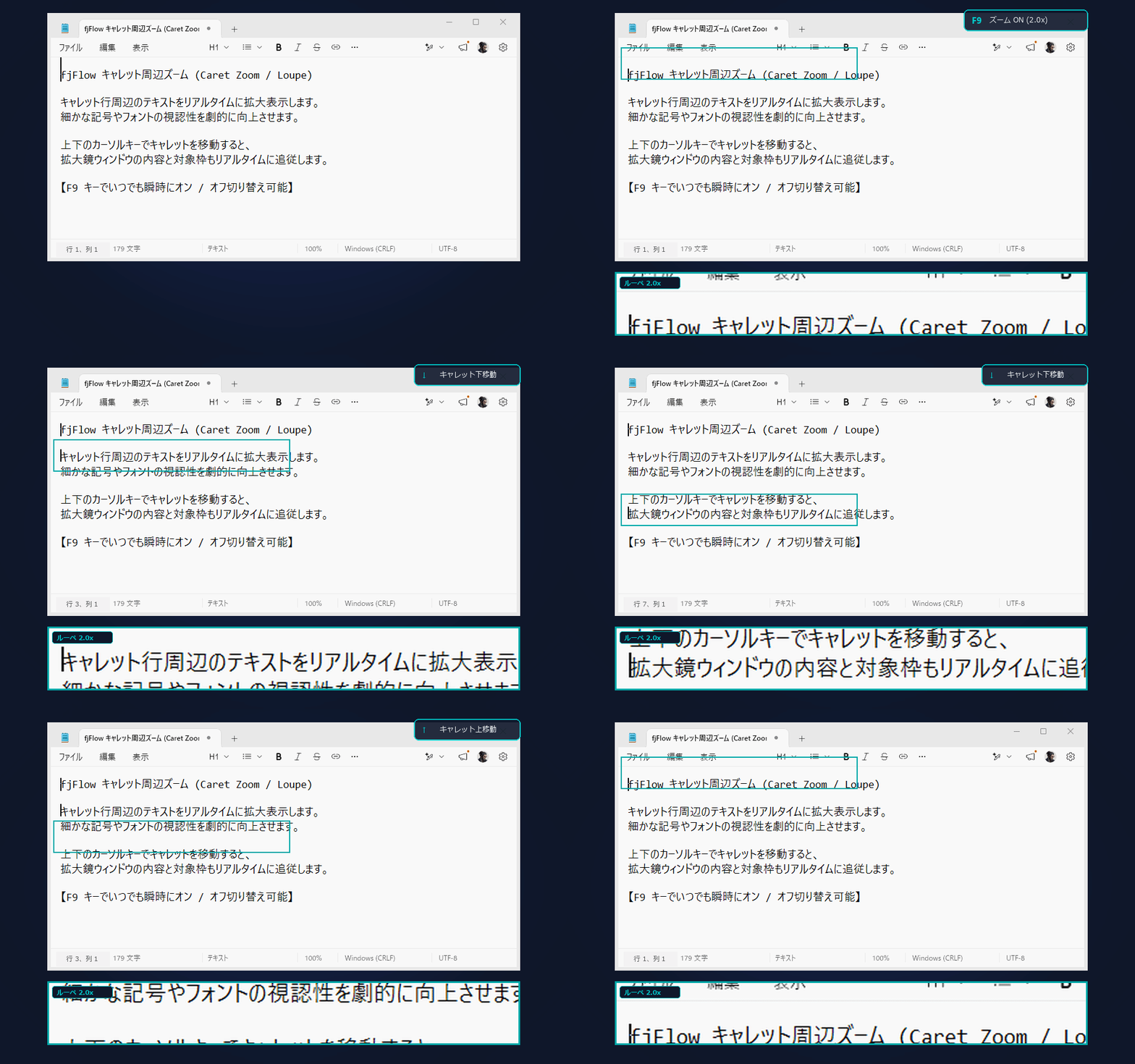
Figure: Caret Zoom (F9) - Magnifies the caret area into a horizontal banner.
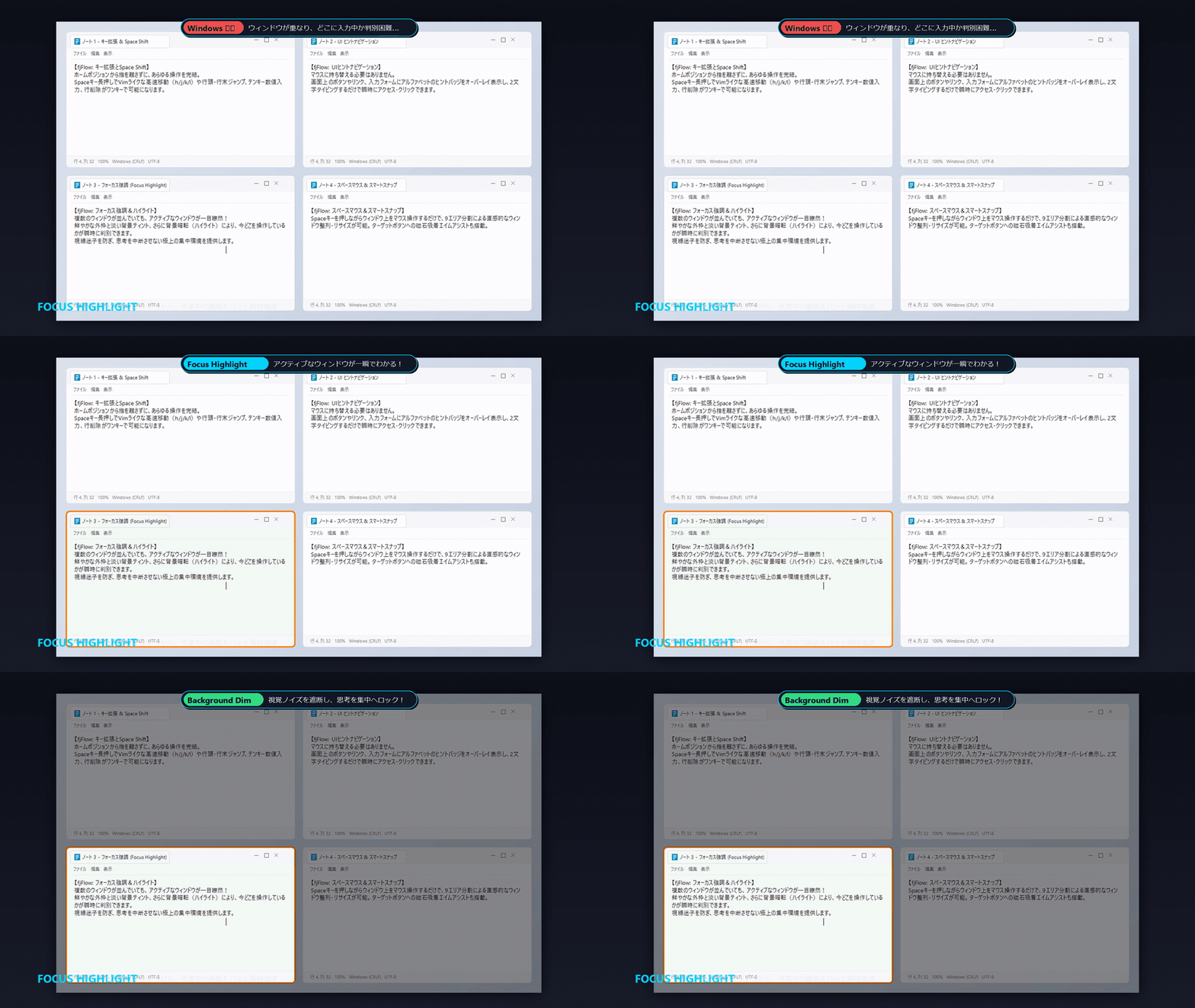
Figure: Line Highlight (F8) - Illuminates the active line while dimming the screen.
2. Screenshot
The following shows how fjFlow behaves during text input inside Windows Notepad.
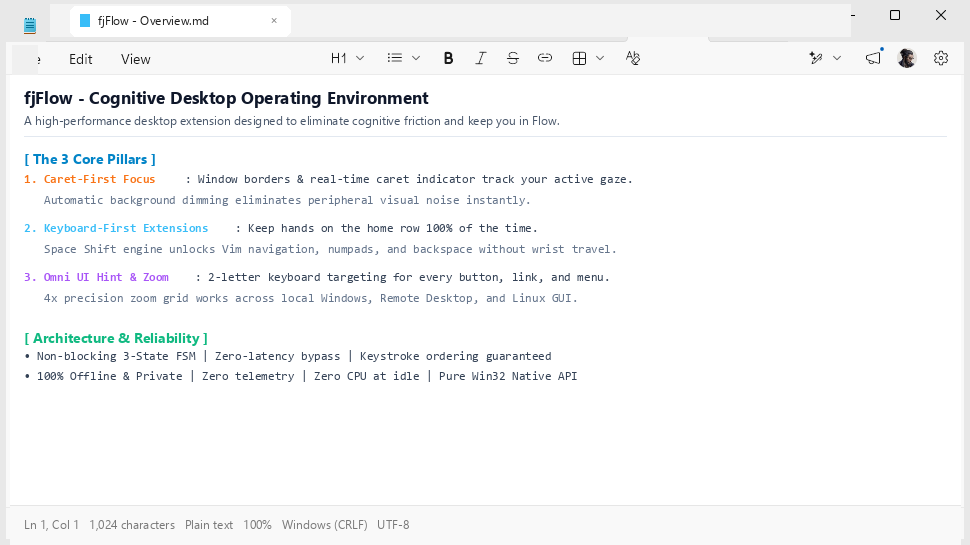 (A solid orange “▼” indicator is displayed right next to the caret, showing that the IME is enabled)
3. Settings Screen
You can customize the appearance and behavior of various indicators via the settings GUI.
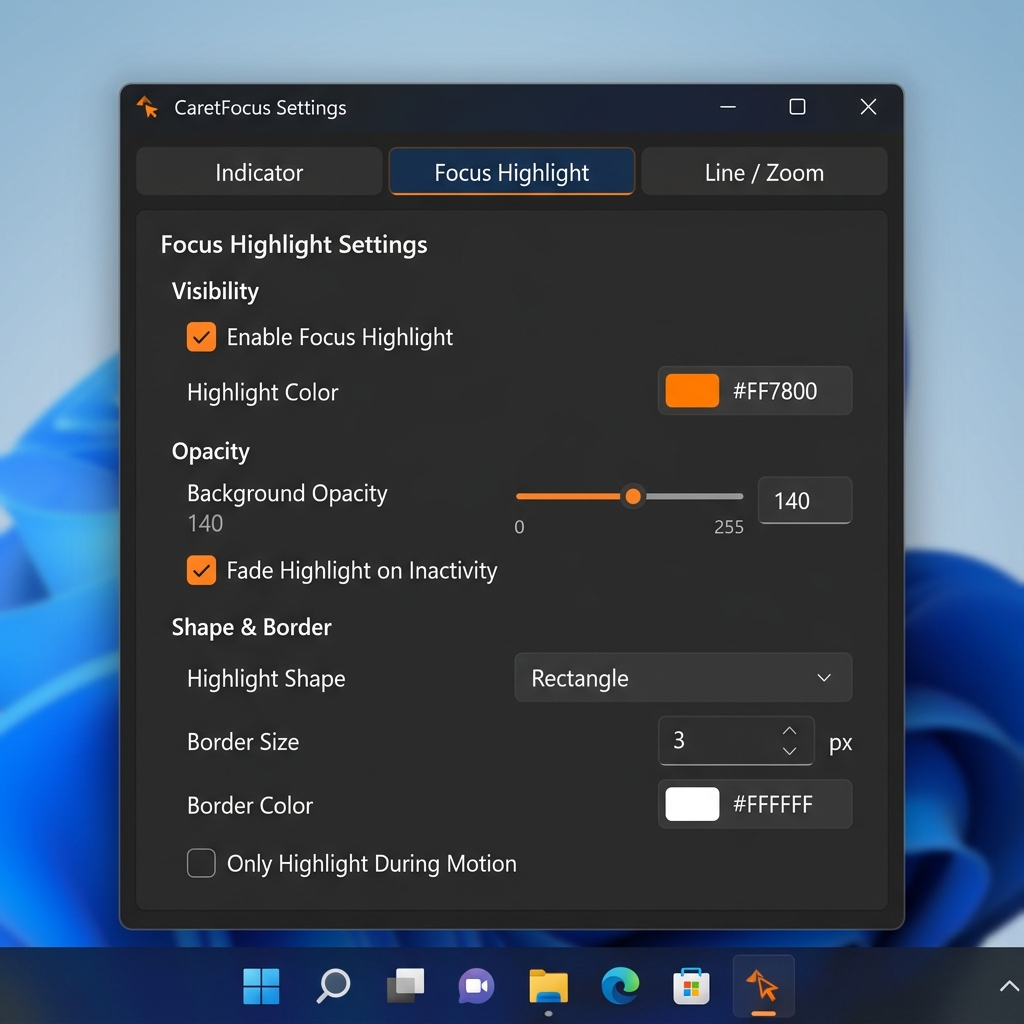
You can open the settings GUI by clicking the fjFlow icon in the system tray.
Customizable Items:
- Indicator Tab: Configure custom characters, font sizes, positioning offsets, and colors for IME On/Off states.
- Focus Highlight Tab: Toggle focus borders, colors, opacities (via slider), border sizes, and idle fade-out delays.
- Line / Zoom Tab: Map startup hotkeys, zoom ratios, outline width, and color palettes.
4. Basic Controls & Troubleshooting
- Suspend/Resume: Tap the
Ctrlkey twice quickly to pause or resume all tools. - Apply Settings: Adjustments made in the settings GUI apply to the active editor immediately. Clicking “Save” saves preferences to
fjFlow.ini. - Restart: Right-click the system tray icon and select “Restart” to reload configurations.