Mouse Circle Operation & Configuration Guide
Zero friction guide to never losing your mouse pointer on high-resolution and ultra-wide displays.
Mouse Circle Operation & Configuration Guide
Zero friction guide to never losing your mouse pointer on high-resolution and ultra-wide displays.
Mouse Circle automatically replaces the small default mouse pointer with an eye-catching, semi-transparent pulsing circle indicator (magenta arc with a blue center dot by default) when the mouse is idle. Moving the mouse by even 1 pixel instantly restores the standard pointer with 0ms latency. Furthermore, when typing begins, the pointer and circle are immediately hidden to keep your text field clean and unobtrusive.
Table of Contents
- 1. How to Enable Mouse Circle
- 2. Idle Detection, Pulse Animation, and Typing Auto-Hide
- 3. 4 Modern Circle Styles
- 4. Customizing Radius, Colors, and Timing
- 5. Visual Noise Elimination during Typing
1. How to Enable Mouse Circle
Follow these steps to toggle Mouse Circle on or off:
- Right-click the fjFlow tray icon in the system tray and select Settings.
- Click the Mouse tab.
- Check the Enable Mouse Circle checkbox.
- Click Save & Close in the bottom-right corner.
[!TIP] Disabled by default. Highly recommended for multi-monitor, 4K, and ultra-wide monitor setups.
2. Idle Detection, Pulse Animation, and Typing Auto-Hide
Mouse Circle defaults to Orbit style with a 30px radius (60px diameter).
- Move the mouse to any screen location and leave it still.
- After the configured delay (default: 3.0s / 3000ms), the arrow cursor automatically disappears.
- A pulsing Orbit circle appears at the exact center coordinates with a breathing pulse animation.
- Instant Cursor Restoration: Moving the mouse by 1 pixel immediately dismisses the circle and restores the default cursor with 0ms delay.
- Auto-Hide on Typing: Pressing any key immediately suppresses both the cursor and circle so they never obscure your text.
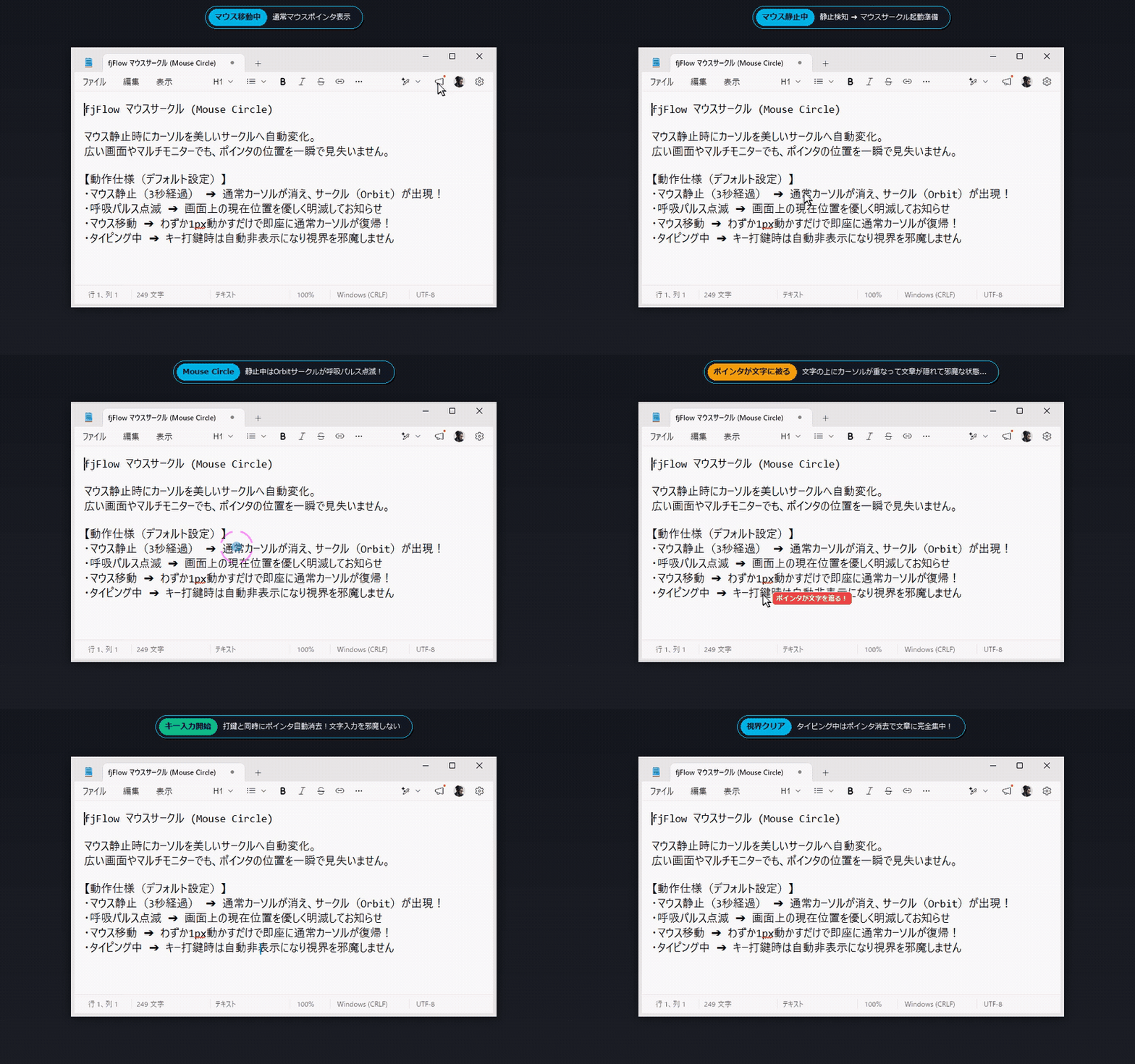
Figure: Mouse Circle Live Demo - Orbit style with 30px radius. Appears after 3 seconds of mouse inactivity with breathing pulse, instantly returns to cursor on mouse move, and hides completely upon keyboard typing.
3. 4 Modern Circle Styles
fjFlow includes 4 high-DPI anti-aliased GDI+ circle styles:
| Style | Appearance & Characteristics | Recommended Use Case |
|---|---|---|
| Orbit (Default) | 4-segment futuristic arc with a center dot. Sleek and unobtrusive. | General desktop work and coding |
| DualRing | Double ring with anti-aliasing. High visibility. | High-resolution 4K and 8K screens |
| Reticle | Crosshair reticle with a center dot. Pinpoint precision. | Design, CAD, and precision alignment |
| Glow | Soft radial neon glow without hard borders. Gentle on the eyes. | Dark mode environments, video editing |
4. Customizing Radius, Colors, and Timing
From the Mouse tab in Settings, you can configure:
- Style: Select from Orbit, DualRing, Reticle, Glow.
- Radius: Slider from 10px to 100px (Default: 30px).
- Idle Delay: Slider from 0.5s to 10.0s (Default: 3.0s).
- Border & Fill Colors: Customize hex color codes and alpha transparency.
5. Visual Noise Elimination during Typing
When typing begins, Windows applications often leave the mouse cursor hovering directly over your words. fjFlow eliminates this distraction:
- Upon the first keypress, the mouse pointer is instantly set to transparent using Win32
SetSystemCursor. - After you stop typing and the idle delay elapses, the Mouse Circle smoothly reappears.
- Any mouse physical movement immediately restores the native cursor shape safely.